

IPTV freezing and buffering are the most common problems users face when streaming live TV.
If your channels keep pausing, loading, or lagging — don’t panic. In most cases, IPTV freezing and buffering issues can be fixed in minutes with the right adjustments.
This complete guide will show you exactly what causes IPTV buffering and how to fix it step by step.
Why IPTV Freezing and Buffering Happens
IPTV streaming depends on several factors working together:
- Your internet speed
- Device performance
- IPTV player optimization
- Router quality
- VPN configuration
- Server load from your provider
If one of these fails, IPTV freezing and buffering start to appear.
Step 1: Check Your Internet Speed 🌐
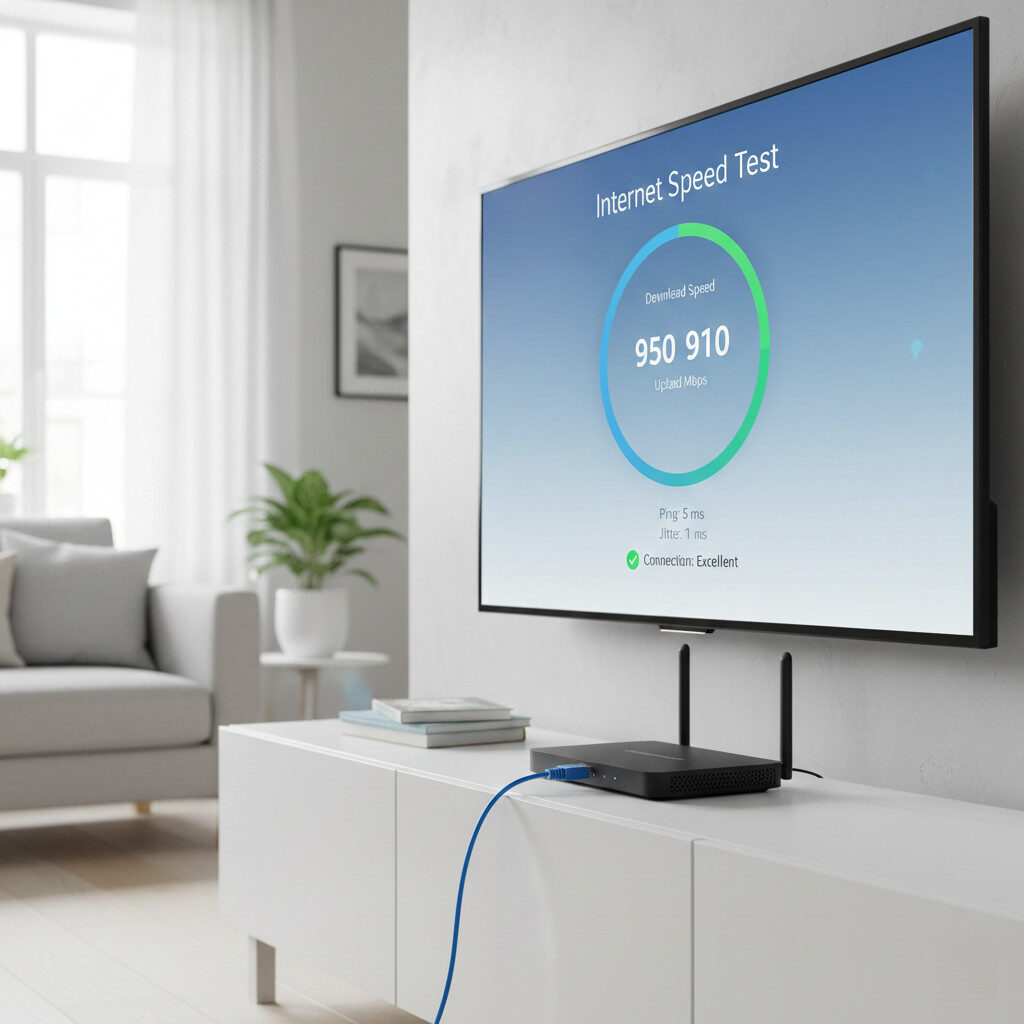
The most common cause of IPTV freezing and buffering is slow or unstable internet.
Minimum Speed Recommendations:
- SD Channels → 10 Mbps
- HD Channels → 20 Mbps
- 4K Streaming → 40–50 Mbps
What To Do:
- Restart your router
- Use Ethernet instead of Wi-Fi
- Switch to 5GHz Wi-Fi
- Run a speed test
If your speed is unstable, buffering will continue.
Step 2: Use a Better IPTV Player ⚙️
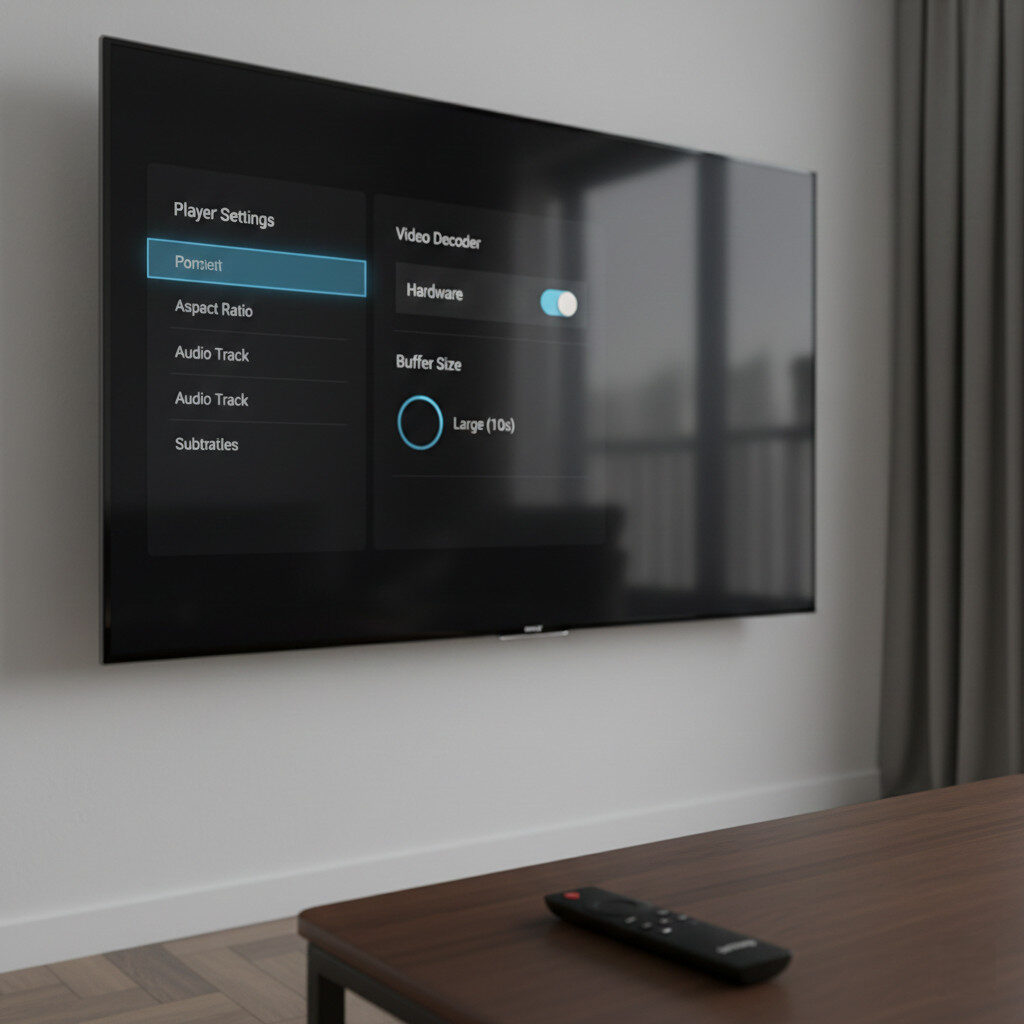
Not all apps handle streams efficiently.
Switching to a high-performance player can instantly reduce IPTV freezing and buffering.
Recommended options:
- TiviMate (best for Android/Firestick)
- IPTV Smarters
- Perfect Player
Enable:
- Hardware decoding
- Buffer size optimization (if available)
Step 3: Clear Cache and Restart the App 🔄
Over time, IPTV apps accumulate temporary files.
On Firestick:
Settings → Applications → Manage Installed Applications → Clear Cache
This often solves minor IPTV freezing and buffering problems immediately.
Step 4: Check Your Device Performance 📦
Older devices struggle with:
- Large M3U playlists
- 4K streams
- Heavy EPG files
If you’re using:
- An older Firestick
- A low-RAM Android TV box
Upgrading your device may completely eliminate IPTV freezing and buffering issues.
Step 5: Try a VPN (If ISP Throttling Is the Issue) 🔐
Sometimes, your internet provider slows down streaming traffic.
A high-quality VPN can:
- Prevent throttling
- Improve connection stability
- Reduce random buffering
Important:
Choose a fast VPN with streaming-optimized servers.
Step 6: Contact Your IPTV Provider 📡
If everything else looks good, the problem may be server overload.
Ask your provider:
- Are servers overloaded?
- Do you have backup URLs?
- Is there a new playlist link?
Server-side congestion is a frequent cause of IPTV freezing and buffering during peak hours.
Quick Checklist ✅
Before blaming your provider, check:
✔ Internet speed stable
✔ Ethernet or 5GHz Wi-Fi
✔ Updated IPTV player
✔ Cache cleared
✔ Device not overloaded
✔ VPN tested
Final Thoughts 🏁
Most IPTV freezing and buffering problems are caused by local issues — not your provider.
By following these steps, you can dramatically improve streaming stability and enjoy smooth IPTV playback again.
If problems continue, upgrading your device or switching players usually makes the biggest difference.