
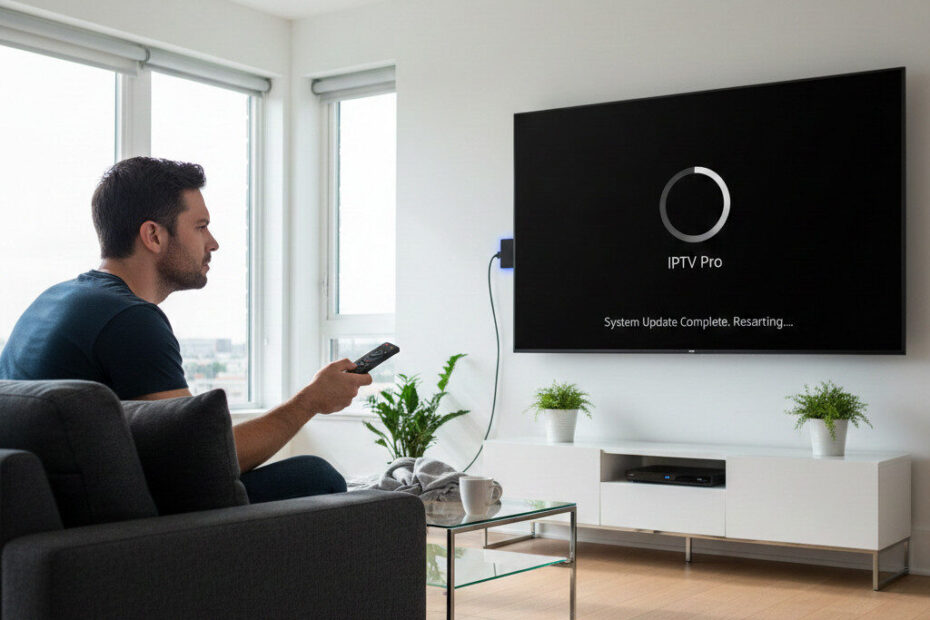
Did your IPTV suddenly stop working after a Firestick update?
You’re not alone. Many users report that after a system update, IPTV apps start crashing, freezing, showing black screens, or refusing to load channels. This happens more often than people think — and in most cases, it’s fixable in minutes.
This guide explains why IPTV stops working after a Firestick update and shows the exact fixes that work.
Why Firestick Updates Break IPTV Apps 🔧
Firestick updates can change system permissions, memory usage, or video decoding behavior. The most common causes are:
- 🔄 Incompatible IPTV app version
- 🧠 Cleared or corrupted app cache
- 🔒 Permissions reset after update
- 📉 Limited RAM on older Firestick models
- 🚫 VPN or background apps conflicting
Common Problems After a Firestick Update ❌
You may experience one or more of these issues:
- IPTV app won’t open
- App crashes instantly
- Black screen when loading channels
- Channels load but don’t play
- Constant buffering after update
Fix IPTV Not Working on Firestick (Step-by-Step) ✅
1️⃣ Restart Your Firestick 🔁
Sounds simple, but it works surprisingly often.
Settings → My Fire TV → Restart
This clears temporary system conflicts caused by the update.
2️⃣ Clear IPTV App Cache 🧹
Updates can corrupt cached data.
Settings → Applications → Manage Installed Apps → Your IPTV App → Clear Cache
⚠️ Do not clear data unless you have your login details.
3️⃣ Update or Reinstall the IPTV App 📥
Some IPTV apps aren’t compatible with new Firestick firmware.
- Check for updates in the app store
- If unavailable, uninstall and reinstall the app
- Always download from the official source
4️⃣ Check App Permissions 🔐
Firestick updates may reset permissions.
- Allow Storage
- Allow Network access
- Disable battery or background restrictions (if available)
5️⃣ Disable or Change VPN 🔒
VPNs sometimes break after Firestick updates.
- Temporarily disable the VPN
- If IPTV works, switch to a Firestick-optimized VPN
- Avoid free or outdated VPN apps
6️⃣ Use a More Stable IPTV Player ▶️
Some IPTV apps handle Firestick updates better than others.
Recommended players:
- TiviMate – best overall stability
- IPTV Smarters – easy setup, multi-device
- Perfect Player – lightweight for older Firesticks
👉 Enable hardware decoding inside the app settings.
When the Problem Is the Firestick Itself ⚠️
Older Firestick models struggle after system updates.
Signs you need an upgrade:
- Slow menus
- Apps crash frequently
- IPTV works but freezes often
✅ Firestick 4K or Firestick 4K Max handle IPTV much better.
How to Prevent IPTV Issues After Future Updates 🛡️
- Keep only essential apps installed
- Restart Firestick weekly
- Avoid beta or modded IPTV apps
- Use stable IPTV players
- Don’t update Firestick during live events
Conclusion 🎯
If IPTV stopped working after a Firestick update, it doesn’t mean your service is broken. In most cases, the issue is caused by cache corruption, app incompatibility, or permission resets.
Follow the steps above, and your IPTV should be running smoothly again in minutes.