
If you’re searching for how to “jailbreak” a FireStick, you’re not alone. It’s one of the most searched topics in streaming — but also one of the most misunderstood.
Good news:
You don’t need hacks, mods, or risky apps.
In this beginner-friendly guide, I show you exactly how I legally customize my FireStick in under 5 minutes, using settings Amazon already provides.
A FireStick doesn’t need hacking — just a few optional settings to unlock more features.
What “Jailbreaking” a FireStick Really Means in 2025
Most websites misuse the word “jailbreak.”
A true jailbreak means bypassing system protections — which is NOT what we do here.
In the streaming world, “jailbreaking” simply means:
- Turning on customization settings
- Installing the apps you want
- Using legal IPTV/media players
- Improving performance
- Cleaning your home screen
SAFE. LEGAL. BEGINNER-FRIENDLY.
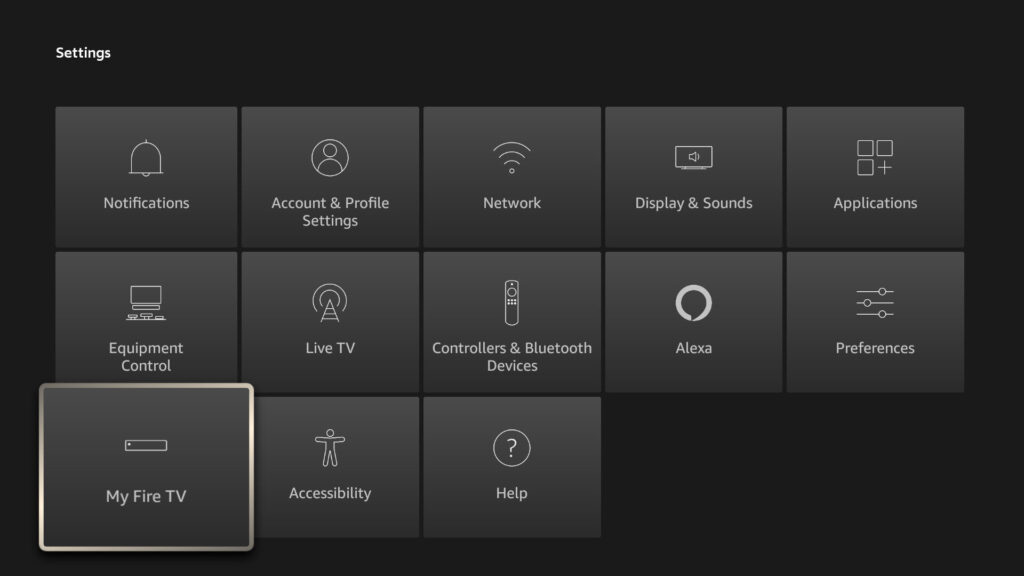
All customization options we use are built into Fire OS — no risks required.
⚡ The 5-Minute Safe FireStick “Jailbreak”
🟦 STEP 1 — Clean Up the Home Screen (30 seconds)
✔️ Move Favorite Apps
- Highlight an app
- Press Menu (☰)
- Select Move to Front
✔️ Uninstall Unwanted Apps
Settings → Applications → Manage Installed Applications → Uninstall
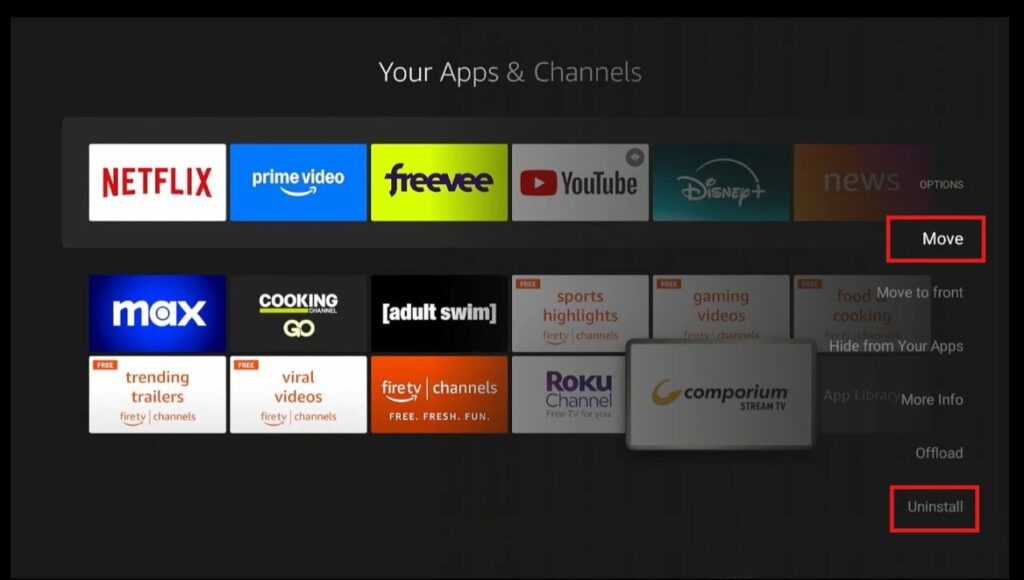
Organizing your FireStick boosts speed and makes everything easier to access.
🟦 STEP 2 — Install the Must-Have Apps (1 minute)
These apps are legal and available in the Amazon Appstore:
🎬 Streaming
- Tubi
- Pluto TV
- Plex
- YouTube
- Freevee
🎵 Media & Tools
- VLC Media Player
- Spotify
📺 Legal IPTV Players
(For licensed IPTV subscriptions only)
- OTT Navigator
- XCIPTV Player
- TiviMate (where available)
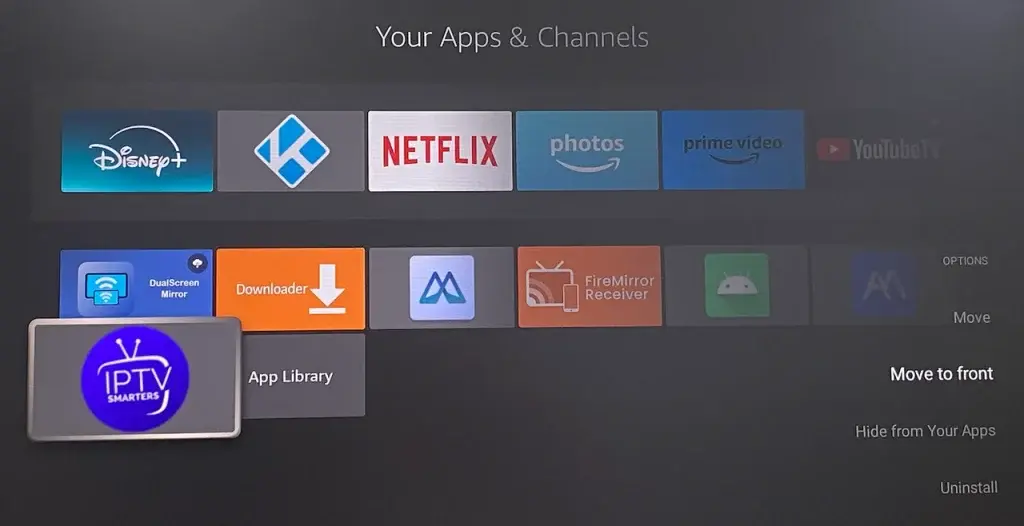
Install only legal IPTV/media players available in the official Appstore.
🟦 STEP 3 — Turn On Key Device Settings (45 seconds)
✔️ Automatic App Updates
Settings → Applications → Appstore → Automatic Updates ON
✔️ Auto Video Resolution
Settings → Display & Sounds → Video Resolution → Auto
✔️ HDMI-CEC
Settings → Display & Sounds → HDMI CEC → ON
✔️ Disable Autoplay Previews
Settings → Preferences → Featured Content → OFF
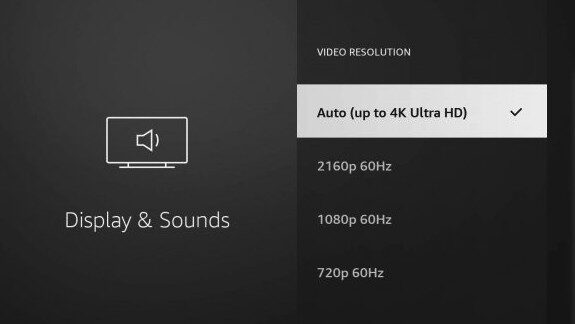
Quick settings improvements can greatly enhance picture quality and usability.
🟦 STEP 4 — Install Your IPTV Player Safely
If you’re using a legitimate IPTV service, they’ll recommend a player like:
- XCIPTV
- OTT Navigator
- TiviMate
These apps do not provide channels — they only play streams from licensed providers.
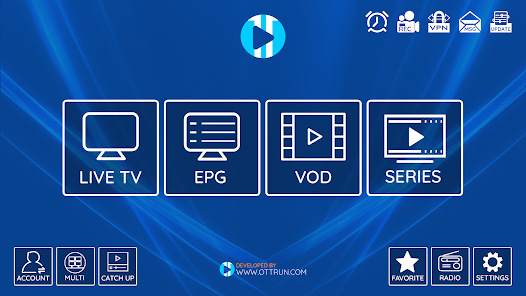
IPTV players are safe as long as your provider is properly licensed.
🟦 STEP 5 — Boost FireStick Performance (45 seconds)
✔️ Clear Cache for Heavy Apps
Settings → Applications → Manage Installed Applications
✔️ Restart Weekly
Hold Select + Play for 5 seconds.
✔️ Disable What You Don’t Use
Turn off unused features under:
Settings → Preferences
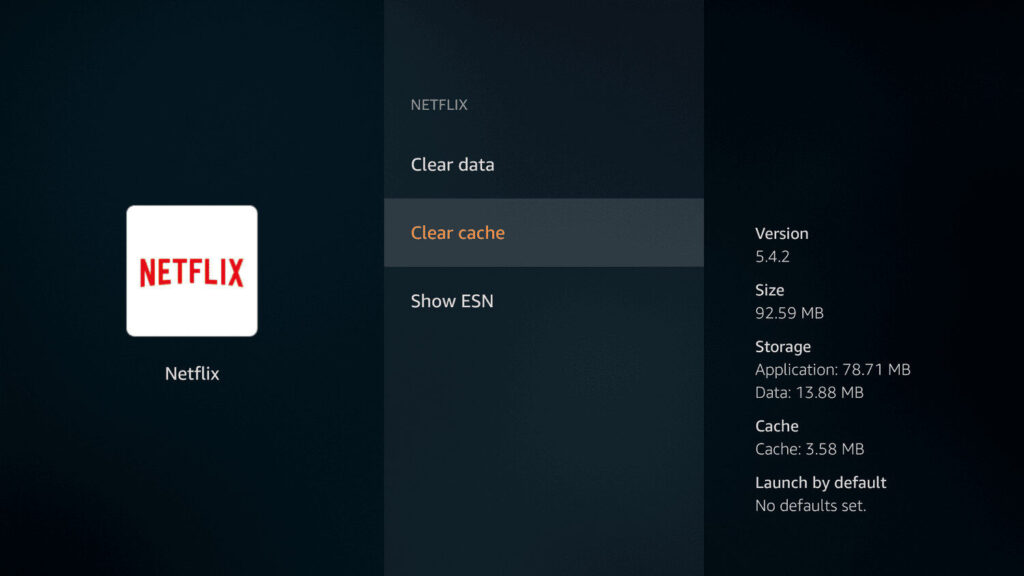
Keeping your FireStick clean ensures it runs smoothly for years.
🔥 Bonus Customizations (Still 100% Legal)
🌙 Dark Mode
📸 Custom Screensavers
🎙️ Alexa Voice Commands
🧹 Advanced Storage Cleaning (manual)
❌ What NOT to Do
To stay safe and avoid warranty issues, avoid:
- Unverified apps from random websites
- Any app offering free premium live TV
- Real jailbreak tools (dangerous + illegal)
- Apps that bypass DRM or region locks
Stick to the steps in this guide and you’re completely safe.
🧠 FAQs — FireStick “Jailbreak” 2025
Is it illegal to jailbreak a FireStick?
A real jailbreak is — but this guide doesn’t do that.
Everything here is legal.
Can I install IPTV Smarters?
Amazon has blocked the app in some regions.
Use legal alternatives like XCIPTV or OTT Navigator.
Does this void my warranty?
No. All steps are Amazon-approved.
Final Thoughts
Using the word “jailbreak” helps people find this guide — but what you’re actually doing is simply unlocking your FireStick through Amazon’s own customization options.
Fast, safe, easy, and completely legal.