
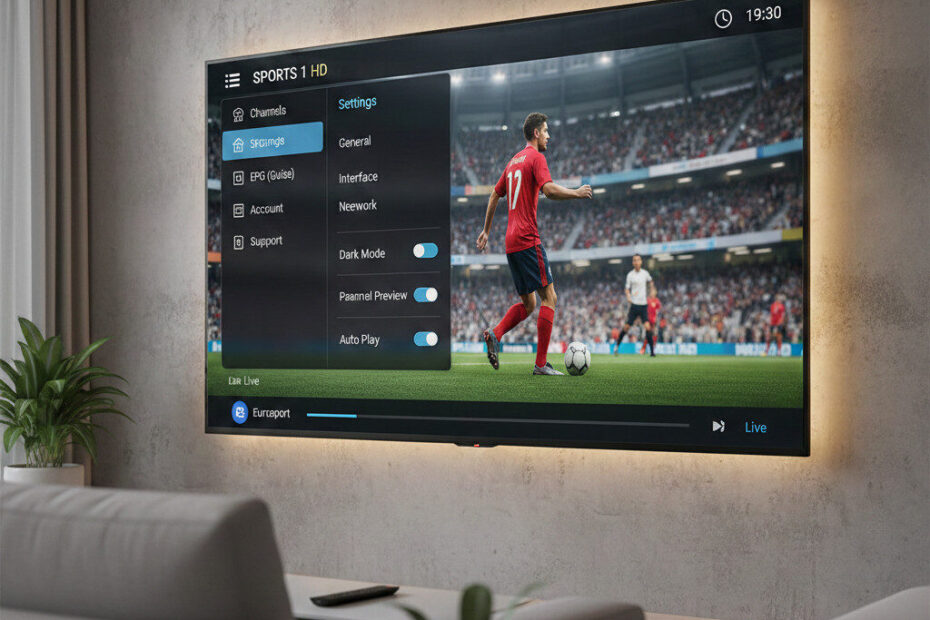
Many users blame their IPTV service when channels freeze, lag, or buffer — but in reality, the issue is often caused by incorrect IPTV player settings.
Even with fast internet, poor player configuration can lead to:
- Live TV lag
- Channel freezing
- Audio delay
- Black screen playback
- Playlist loading errors
Optimizing your IPTV player settings can dramatically improve streaming performance without changing your provider or internet plan.
In this guide, you’ll learn the best IPTV player settings for smooth streaming and how to eliminate lag and freezing issues.
⚙️ Why IPTV Player Settings Matter
Most IPTV players are not optimized for live streaming by default.
Incorrect settings can cause:
- Packet loss
- Stream instability
- Delayed playback
- App crashes
- Playlist errors
Using the best IPTV player settings ensures stable channel playback and faster loading times.
🧠 Enable Hardware Decoding
Hardware decoding allows your streaming device to process video streams more efficiently.
If disabled, your IPTV player may struggle to handle HD or live sports channels.
✅ Recommended Setting:
Enable:
- Hardware Acceleration
- Hardware Decoder
- GPU Rendering
This reduces buffering and prevents IPTV playback from freezing.
📡 Adjust Buffer Size for IPTV Streaming
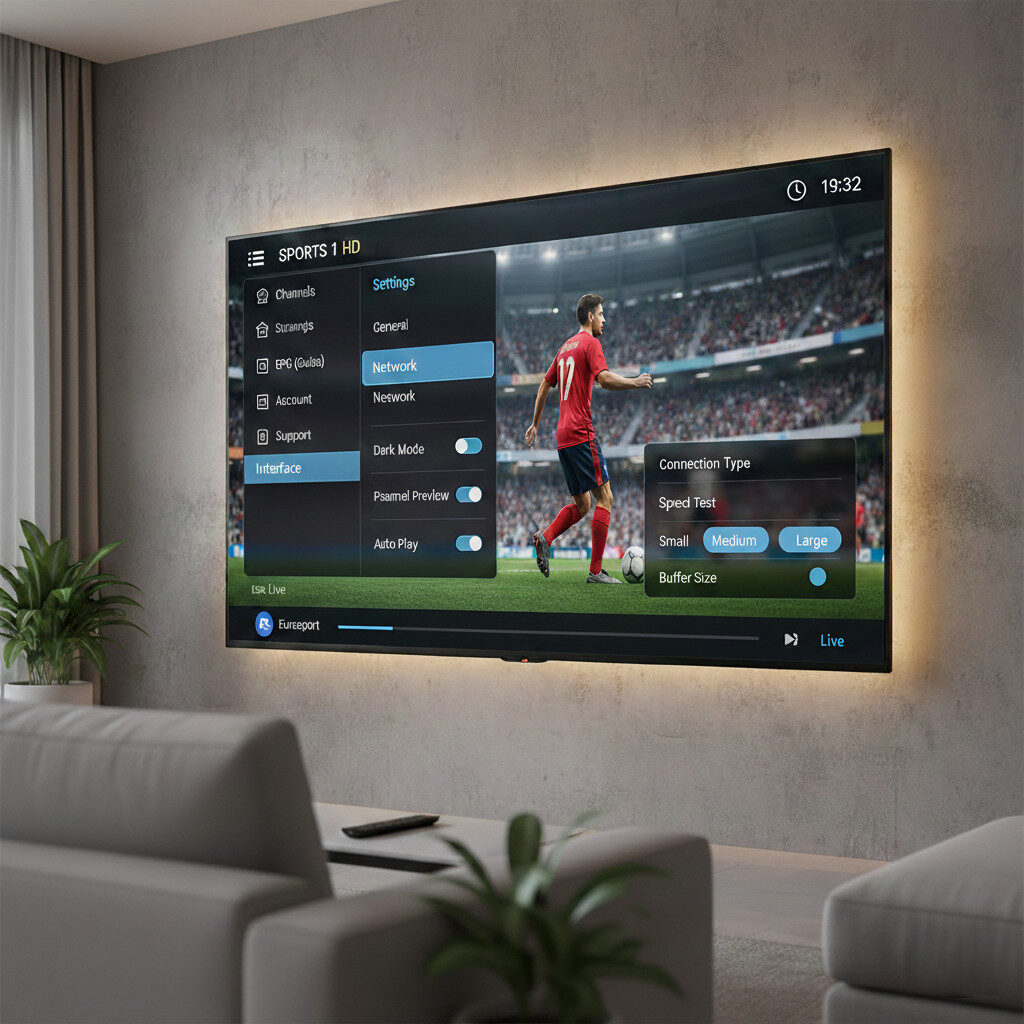
Buffer size determines how much video data is preloaded before playback begins.
A buffer that’s too small may result in constant freezing.
✅ Best IPTV Player Settings:
- Small Buffer: Fast loading but unstable
- Medium Buffer: Balanced
- Large Buffer: Stable streaming
Set buffer size to Medium or Large for smoother playback.
🎥 Change Stream Format
Some IPTV players support different streaming formats.
Changing the format can improve compatibility with your device.
✅ Recommended Format:
Switch from:
- HLS
to:
- MPEG-TS
This often improves live channel playback stability.
🌐 Enable Auto Frame Rate
Frame rate mismatch between your IPTV stream and TV can cause:
- Stuttering
- Motion lag
- Screen tearing
✅ Best IPTV Player Settings:
Enable:
Auto Frame Rate Adjustment
This allows your IPTV player to match your TV’s refresh rate automatically.
🔄 Keep IPTV App Updated
Outdated IPTV players may have performance issues.
Updates often improve:
- Channel loading speed
- Playlist compatibility
- App stability
- Streaming performance
Always install the latest IPTV player version.
🧹 Clear IPTV Player Cache Regularly
Temporary data buildup can slow down IPTV apps over time.
If streaming becomes unstable:
Go to:
Settings → Apps → IPTV Player → Storage → Clear Cache
Restart the app afterward.
🛠️ Quick IPTV Player Optimization Checklist
To improve IPTV streaming:
✔ Enable hardware decoding
✔ Increase buffer size
✔ Change stream format
✔ Enable auto frame rate
✔ Update IPTV player
✔ Clear cache regularly
Applying these IPTV player settings usually improves performance immediately.
🎯 Final Thoughts
Using the best IPTV player settings is essential for smooth live TV streaming.
Optimizing hardware decoding, buffer size, and playback format can eliminate lag and improve channel stability across all IPTV apps.
These small adjustments can significantly enhance your IPTV viewing experience without upgrading your device or internet speed.