
🎯 Introduction
Many IPTV users notice an annoying problem:
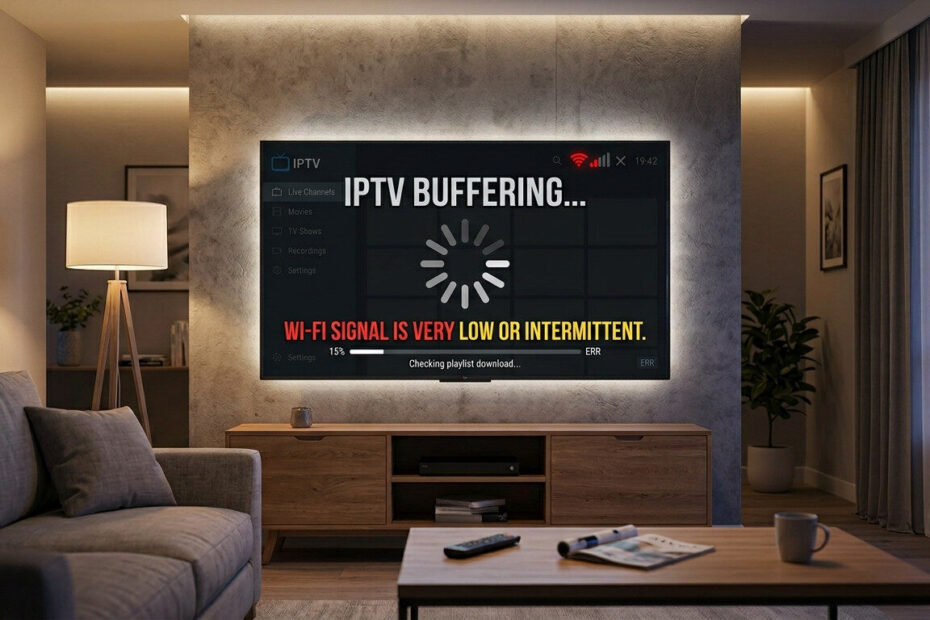
👉 IPTV works fine sometimes… but starts lagging badly on Wi-Fi.
Channels buffer, streams freeze, and live sports become almost impossible to watch.
If your IPTV is lagging on Wi-Fi, the issue is usually related to signal strength, router settings, or network congestion — not necessarily your IPTV provider.
The good news?
You can often fix IPTV Wi-Fi lag in just a few minutes with a few simple changes.
❓ Why IPTV Lags on Wi-Fi
Wi-Fi connections are less stable than wired Ethernet connections.
Several factors can affect IPTV streaming quality:
- Weak Wi-Fi signal
- Router overload
- Too many connected devices
- ISP throttling
- Interference from walls or electronics
- Poor router placement
These issues can interrupt live IPTV streams and cause buffering.
📡 1. Move Closer to Your Router
Distance affects Wi-Fi performance significantly.
✅ Fix:
- Move your device closer to the router
- Avoid thick walls between devices
- Reduce signal obstacles
A stronger signal improves IPTV streaming stability immediately.
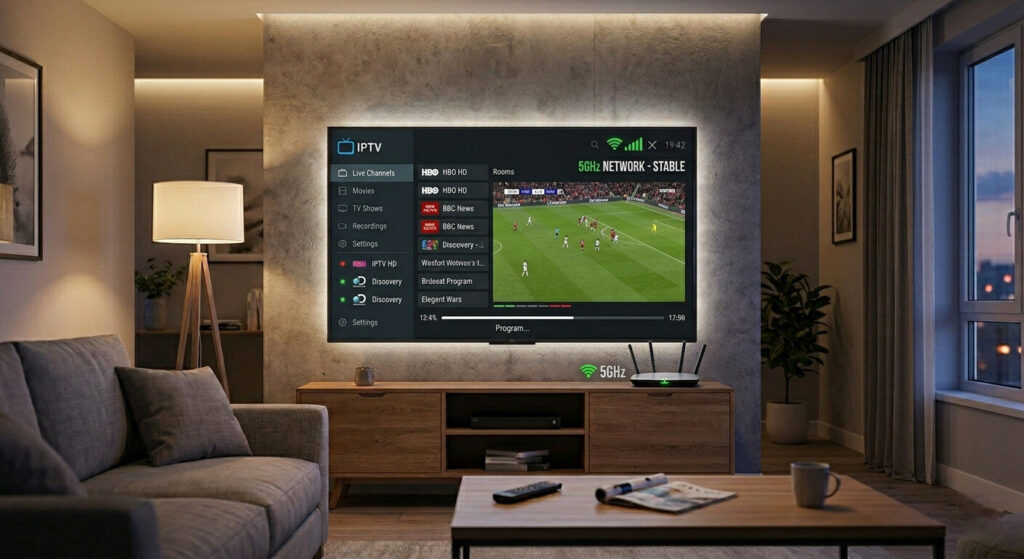
🌐 2. Switch to 5GHz Wi-Fi
Many routers support:
- 2.4GHz
- 5GHz
✅ Why 5GHz Is Better:
- Faster speeds
- Lower interference
- Better streaming performance
5GHz networks are usually more stable for IPTV streaming.
🔄 3. Restart Your Router
Routers can slow down after running continuously for long periods.
✅ Fix:
- Turn off router for 60 seconds
- Restart it
- Reconnect IPTV device
This refreshes the network and can reduce IPTV lag instantly.
⚙️ 4. Reduce Network Congestion
Too many devices using Wi-Fi at the same time can overload your network.
✅ Fix:
- Pause large downloads
- Disconnect unused devices
- Avoid streaming on multiple devices simultaneously
Reducing congestion improves IPTV playback quality.
🔐 5. Use a VPN
Some internet providers throttle streaming traffic during peak hours.
✅ Fix:
A VPN can:
- Bypass ISP throttling
- Improve routing
- Stabilize IPTV streams
Many users report smoother IPTV playback after enabling a VPN.
📺 6. Lower Streaming Quality Temporarily
If your connection struggles with HD or 4K content:
✅ Fix:
Reduce stream quality:
- 4K → HD
- HD → SD
This decreases bandwidth usage and reduces buffering.
🧹 7. Clear IPTV App Cache
Old cache files can slow down IPTV apps.
✅ Fix:
Go to:
Settings → Apps → IPTV App → Clear Cache
Restart the app afterward.
🚀 8. Use Ethernet for Best Results
Wi-Fi is convenient, but Ethernet is more stable.
✅ Best Solution:
Use:
- Ethernet adapter
- Wired connection
A wired connection provides the best IPTV streaming experience.

🛠️ Quick IPTV Wi-Fi Fix Checklist
If IPTV is lagging on Wi-Fi:
✔ Move closer to router
✔ Use 5GHz network
✔ Restart router
✔ Reduce connected devices
✔ Enable VPN
✔ Lower stream quality
✔ Clear cache
✔ Use Ethernet if possible
🎯 Final Thoughts
When IPTV is lagging on Wi-Fi, the issue is usually caused by unstable wireless connections or network congestion.
Optimizing your router, reducing interference, and improving connection quality can dramatically improve IPTV performance.
Small network adjustments often eliminate buffering and restore smooth live TV streaming.